Tools to Challenge the Mind

on Monday, September 8, 2008

This past week, I've been think a lot about Mindtools and Digital Natives. As I read David H. Jonassen's introductory chapters in Modeling with Technology: Mindtools for Conceptual Change (2006), I felt a little conflicted about some of his points. At first, when he discussed how mindtools require students to "think deeply about the content they are learning" and require "the development of learner skills in a limited number of programs that can be applied to a broad range of subject content," I was impressed (p. 18 & 21). Doesn't every teacher want to foster higher level thinking skills in the most efficient way possible?

However, as I read on, I couldn't help being distracted by several nagging questions in the back of my mind. First, the examples most frequently discussed in the book seemed to cater to the analytic or linguistic learners (most specifically the many database and flowchart examples). I was honestly left wondering if these ideas would engage digital natives--especially elementary school kids. As Marc Prensky pointed out, our students are accustomed to programs like Seasame Street, so they know learning can be fun, engaging, and challenging -- all while bringing about the conceptual change Jonassen discusses.

Second, while I like the idea of using a few programs to accomplish a multitude of tasks (and for really great ideas on how to use PowerPoint in many different ways see http://tied2lenski.wikispaces.com/), I could not help wondering if that is often not the most efficient method. For example, while we can create concept maps in PowerPoint, it can be done much more quickly in Inspiration or at http://www.bubbl.us/. Instead of spending brain power trying to figure out how to create and connect the bubbles and resize font and shapes, students can spend their cognitive energy thinking about the concepts being studied.

Aside from these two questions, I found a lot of value in Jonassen's mindtools philosophy. For example, I whole-heartedly agree that concept mapping should be modeled by teachers and created by students before, during, and after units of study. Comparing these multiple concept maps can allow the teacher to see how student understanding has changed and grown. This past year, the teachers in my building received in-service on a more powerful method of concept mapping, called Power Mapping. Not only do my students really enjoy Power Mapping, but it forces them to think deeply about the connections between new and prior knowledge. It allows students to see the importance of various topics in the concept map, and also facilitates reading and writing skills. In fact, the elementary teachers loved the idea so much that we introduced the method to the secondary teachers this summer. You can see our brief PowerPoint overview below and the accompanying handout here.

Power Mapping
View SlideShare presentation or Upload your own. (tags: concept mapping)


Inspiration has a similar form of Power Mapping, but we usually create our maps in Smart Notebook. (Perhaps this contradicts my argument earlier that we should use the most efficient software to complete a task, thereby saving brain power! However, Inspiration's model is different than my district's, and I sacrifice efficiency for consistency in this case.)

Another mindtool that I strongly value in my class is storytelling. Jonassen stated that "humans seem to have an innate ability and predisposition to organize and represent their experiences in the form of stories, because stories require less cognitive effort to understand than exposition" (Modeling with Technology, page 18). Wes Fryer supports this idea, claiming that "as human beings, we are hardwired for storytelling." He gives standards-based lesson ideas for using a web 2.0 tool to facilitate storytelling with digital natives. Voice Thread is a great tool to share stories, analyze graphics, and investigate cultures and languages worldwide. Last year, second graders in our school participated in the Voices of the World challenge to improve their literacy skills. I'd like to use some of Wes Fryer's ideas in my classroom this year.

I actually came across Wes Fryer's storytelling page through another blog called "Raised Digital." In this blog, J. Brueck points out that teachers need to focus on the learning potential behind a computer-based tool, and not the bells and whistles. What makes Wes Fryer's storytelling page such a valuable resource is that it's focused on learning and not on cool, new gadgets. (I have to admit to being tempted by new gadgets now and then!) I think that Jonassen is essentially saying the same thing: teachers should create lessons that will cause students to construct, challenge, and change their understandings of the world. However, I think we could also do this in ways that will engage students who aren't linear, analytical, linguistic learners. Maybe that's in the chapters to come?

Guiding My Digital Students Through Their Digital World

on Tuesday, September 2, 2008

Sometimes it seems like an impossible task--keeping up with the constant flow of new digital tools our students are already using, and also teaching those digital natives ways to use their favorite tools to improve their thinking. I just finished reading a blog entry by Wesley Fryer that discusses how teachers seem to be stuck in the last century (http://www.speedofcreativity.org/2008/08/29/live-tweeting-back-to-school-night/). While there were moments of his entry that made me chuckle, I was struck by the seriousness of making sure our students are equipped with the tools they need to survive in a flat, 21st century world.

That leads to my goal for the fall semester of 2008: to improve my ability to model digital-age learning and to promote/model digital citizenship and responsibility. In our schools today, it seems like these important skills (which are also National Educational Technology Standards for Teachers) are being pushed aside for standardized testing scores. My hope is to resist the pressure to focus solely on one way of measuring student understand (the PSSAs) and help them learn how to demonstrate their learning through online discussions, blogs, podcasts, and more. Even though the pressure is there to "send home writing prompts specifically relating" to the standardized writing assessment (see the blog mentioned above), I know that teaching my students to participate in the read-write web in meaningful ways will more than prepare them for both the PSSAs and the world they will face after graduation.

Podcast & Screencast Tools

on Friday, July 20, 2007

Tony Vincent posted two blogs recently that are all about some useful tools for podcasting & screencasting:

1) Jing (a tool that captures your computer screen in still or video form--it's REALLY easy to use for screen casting!) http://tonyvincent.net/?q=node/27

2) Soundsnap (a website that offers free podsafe audio--one of the best sites that I've seen) http://learninginhand.com/blog/index.html

Check out his blogs to learn more.

Read Across America Podcast

on Monday, July 9, 2007

Click here to listen to the podcast we made in class today. It's a promo for Read Across America week in elementary schools.

Colonial Chronicles WebQuest

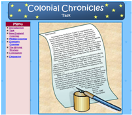
My brand new website about the colonial days can be found at: http://www.personal.psu.edu/cjm402/Index.htm. This site was made for fifth grade students and is set up similar to a webquest. Click here to see the lesson plan for this site.

Internet in the Classroom--"One Thing"

I learned a lot in the "Internet in the Classroom" graduate course this summer. I created an entire website from scratch, set up my Google Reader, learned how to use blogs and wikis in the classroom, and so much more. However, I would have liked to have compiled a collection of ready-made web resources for use with my curriculum. There are already a bunch of great lessons, web quests, and slam dunks on the web that would match well with the topics I teach, but I usually don't have time to search for them during the school year. It would have been great to have compiled a list of resources I could refer to during the busy seasons of the year.

I'm a Google Addict

on Wednesday, July 4, 2007


Over the past week, I've become addicted to Google. It started when I set up my Google Reader to keep up-to-date with various blogs. While I was doing that, I noticed that I could personalize my Google page, called iGoogle. Then I noticed that I could "add stuff" to my Google page, so I began exploring the gadgets. I found so many useful tools, that I considered having my students set up their own iGoogle page. In fact, Google has a page with suggestions for educators (http://www.google.com/educators/p_php.html). There are many valuable gadgets they could add to their page, but here are just a few:

1) Map-My-Word Thesaurus--This tool does more than just give a list of synonyms. Instead, it presents synonyms in the form of a concept map, grouping synonyms of similar connotations together. For years I've been trying to teach my students that even if two words are synonyms, they could have different connotations, but this tool just might be the key to helping my students really understand that concept. When a user rolls their mouse over the concept map, they learn the various meaning of different word clusters.

2) Merriam Webster's Dictionary Search

3) Wikipedia Search--Adding the Merriam Webster Dictionary Search and the Wikipedia Search gadgets to student iGoogle pages will allow them to have two highly used tools in an easily accessible location.

4) American Heritage Picture of the Day--Every day this gadget displays a different image from American History. It also gives a one sentence summary of the picture. These pictures could spark discussions and further research.

5) Online Stopwatch--Sometimes our students need a little more focusing and motivation. The stopwatch is a great way to individually chunk online activities to keep students on-task and focused.

As with any technology, there are some concerns about using iGoogle with students. For example, some of the gadgets are guaranteed time-wasters (such as games) and some are not appropriate for students. Students will need to be taught responsible use of the program and understand that there are consequences for misusing it. Also, students need to supply an email account in order to create an iGoogle page. In my district, the students don't have school email accounts, although some have email at home. Lack of email addresses might limit use.

However, teachers can use Google's free Page Creator to create a webpage with all the helpful gadgets for their students. It's a WYSIWYG application, so I tried it out, and it was very simple and easy to create a webpage. I'm going to have my students set the page I created as their home page (http://mitton5student.googlepages.com/home), so every time they logon they go immediately to the site.

I’ve also started looking at Google Docs & Spreadsheets, which allow students to collaborate on documents over the internet. With Google Docs, students and teachers can decide who can access and edit documents. Additionally, teachers can check the revisions history to see how students have revised their work, how they contributed to the project, and how long each student worked on the document. Work is automatically saved, so students won’t accidentally lose their project. Once again, students need to create a Google or Gmail account to use Google Docs.

For most Google applications, you can find a crib sheet for teachers and students at http://www.google.com/educators/activities.html. Regardless of whether my students end up creating iGoogle pages, there are so many helpful tools that I like to use on my page, such as my Google Reader, news from CNN and eSchool, a To-Do List, and the weather forecast. Knowing the way technology develops, there will probably be four times as many gadgets and open source programs from which to choose by the end of the year, which will just increase my use of Google. I can't wait to see how it continues to improve!